

Overview
The “Your network settings prevent content from loading privately” message indicates that a device—commonly an iPhone, iPad, or Mac—is unable to maintain a fully secure internet connection. This occurs when privacy features such as iCloud Private Relay or secure DNS cannot function properly. While not always a security threat, it signals that data may be more exposed than intended.
This guide covers:
✅ Meaning of the warning and its purpose
✅ Common causes, including public Wi-Fi, VPN conflicts, and insecure DNS settings
✅ Steps to resolve the issue through network or privacy adjustments
✅ Ways to avoid the warning on public or shared connections
✅ Reasons the alert is more common on Apple devices
✅ Best practices for maintaining secure, private browsing in all environments
Have you ever seen a message like, “Your network settings prevent content from loading privately” pop up on your device? It can be confusing and even a little alarming, especially if you’re not sure what it really means.
But don’t worry—you’re not alone. Many people encounter this notification, particularly when browsing on public Wi-Fi, using a VPN, or after changing network settings. In this blog, I’ll walk you through exactly what this message means, why it appears, and what you can do about it to keep your browsing safe and secure.
What Does “Your Network Settings Prevent Content from Loading Privately” Mean?
First, let’s break it down simply.
This message usually appears when your device—especially Apple devices like iPhones, iPads, and Macs—detects that it cannot load content using a secure, private connection. Essentially, it’s your device warning you that your network might be exposing your browsing data to others or making it less secure.
Private browsing aims to shield your online activity from prying eyes. If your network settings interfere with this, the device alerts you to the potential risk.
Common Reasons Why This Message Appears
There’s no single cause for this notification—it can happen for several reasons. Let’s explore the most common ones:
Public or Unsecured Wi-Fi Networks
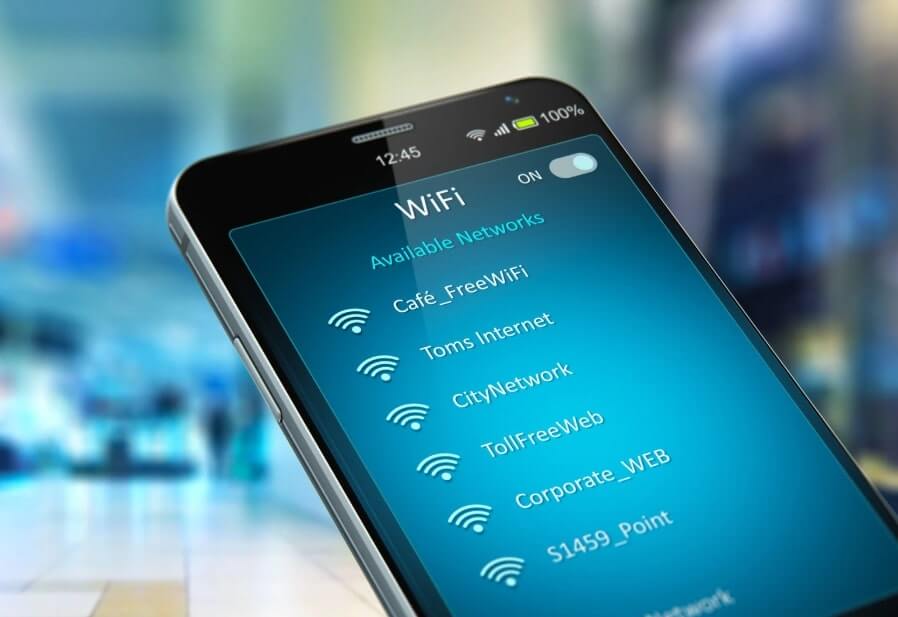
Public Wi-Fi networks in cafes, airports, or hotels often lack robust security. Your device might warn you because the network doesn’t encrypt traffic properly, making it easier for hackers to intercept your data.
VPN (Virtual Private Network) Settings
Ironically, VPNs are designed to enhance privacy, but sometimes VPN configurations or server issues can confuse your device. If the VPN you’re using isn’t set up correctly, or if it slows down secure handshakes between your device and websites, you may see this warning.
DNS (Domain Name System) Settings
DNS servers translate website names (like google.com) into IP addresses. If you’re using a DNS server that doesn’t support encryption (like older or custom ones), your device might detect it and warn you that your browsing isn’t private.
Network-Level Content Filtering
Some organisations, schools, or public networks filter content for security or policy reasons. These filters can interfere with how secure connections are established, triggering the warning.
Outdated or Misconfigured Device Settings
Occasionally, if your device software is outdated or your network settings are incorrectly configured, it may mistakenly identify a perfectly safe network as insecure.
Should You Be Worried?
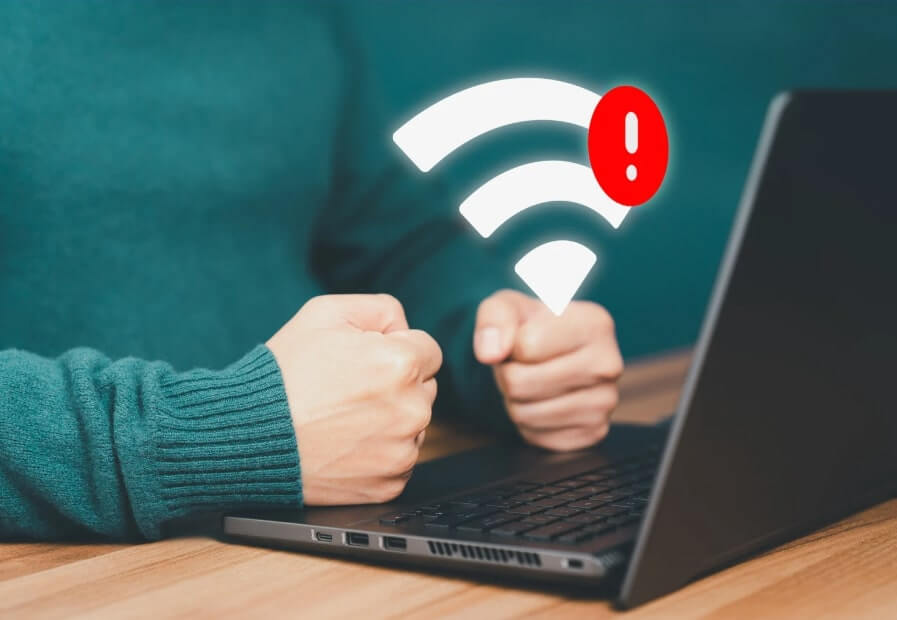
Seeing this warning doesn’t necessarily mean someone is spying on you—but it is a sign you should be cautious.
Here’s when you should be concerned:
- You’re on a completely unsecured Wi-Fi network.
- You’re entering sensitive information, like banking or personal data.
- The network is unfamiliar or seems suspicious.
- You notice other warning signs like unexpected pop-ups, slow performance, or strange redirects.
If you’re simply browsing news websites or checking the weather, the risk is lower. But when it comes to personal or financial information, always prioritise security.
How to Fix or Manage the Issue
If you want to avoid seeing this message—and browse more safely—here are a few steps you can take:
Use Trusted, Secure Networks
Whenever possible, stick to secured Wi-Fi networks you trust. At home, make sure your Wi-Fi has strong encryption (preferably WPA3 or WPA2) and a solid password.
Check or Update Your VPN
If you’re using a VPN, ensure it’s reputable and updated. Cheap or free VPNs can sometimes cause more problems than they solve. Consider investing in a trusted VPN provider that prioritises security and reliable server connections.
Adjust DNS Settings
Using a secure DNS service like Google Public DNS (8.8.8.8 and 8.8.4.4) or Cloudflare DNS (1.1.1.1) can enhance privacy. Some devices even allow you to enable “Private DNS” or “Encrypted DNS” directly from the settings.
Keep Your Device Software Updated
Updates often include security improvements. Always keep your operating system and apps up to date to ensure you benefit from the latest protections.
Use HTTPS Websites
Stick to websites that start with “https://” instead of just “http://”. The ‘S’ stands for secure, meaning the data exchanged between you and the website is encrypted.
Most modern browsers also alert you if you’re visiting a non-secure site, so pay attention to any browser security warnings.

Does This Affect Only iPhones?
While the “Your network settings prevent content from loading privately” warning is most commonly associated with Apple devices (because of features like “Private Relay” and Safari’s intelligent tracking prevention), the underlying issue—secure vs. insecure connections—applies across all devices.
Android phones, Windows PCs, and even smart TVs can have similar vulnerabilities; they just might not alert you as clearly. So, taking steps to secure your connection is good practice for any device.
Importance of Privacy When Browsing Online
In today’s world, maintaining online privacy isn’t just for the ultra-paranoid—it’s for everyone.
Your browsing data can be valuable to hackers, advertisers, or even government surveillance agencies. By taking steps to ensure private browsing, you protect:
- Your personal information (like banking details, addresses, and passwords)
- Your browsing habits and history
- Your identity and digital footprint
Being proactive about your network security helps safeguard your privacy and gives you more control over your digital life.
Stay Secure, Stay Informed
You don’t have to be a tech expert to stay safe online. Simple, mindful steps—like using secure networks, updating devices, and understanding alerts like this one—make a huge difference.
If you’re serious about strengthening your digital skills and learning more about cybersecurity, consider enrolling in one of our online courses. Designed for beginners and professionals alike, our courses equip you with the knowledge to browse safely, protect your data, and even pursue a career in cybersecurity if you wish.
Conclusion
The message “Your network settings prevent content from loading privately” is more of a caution than a cause for panic. It’s your device’s way of telling you to stay alert and think carefully about your connection’s security.
By understanding what triggers it, taking simple steps to protect yourself, and learning about the essentials of online privacy, you can browse confidently and securely wherever you go.
Ready to deepen your understanding of cybersecurity and digital safety? Check out our courses and take control of your online privacy today!